Blog

  • 10 Best AI Tools for Creators and Productivity This Year

    10 Best AI Tools for Creators and Productivity This Year

    Introduction

    There is an AI that can turn text into a 15-second video. There is also one that generates high-quality images without costing you a cent. However, this year the options for content creators are more varied and more affordable than ever.

    The problem is, most people are still stuck using the same tools they did two years ago. Meanwhile, the landscape has changed completely.

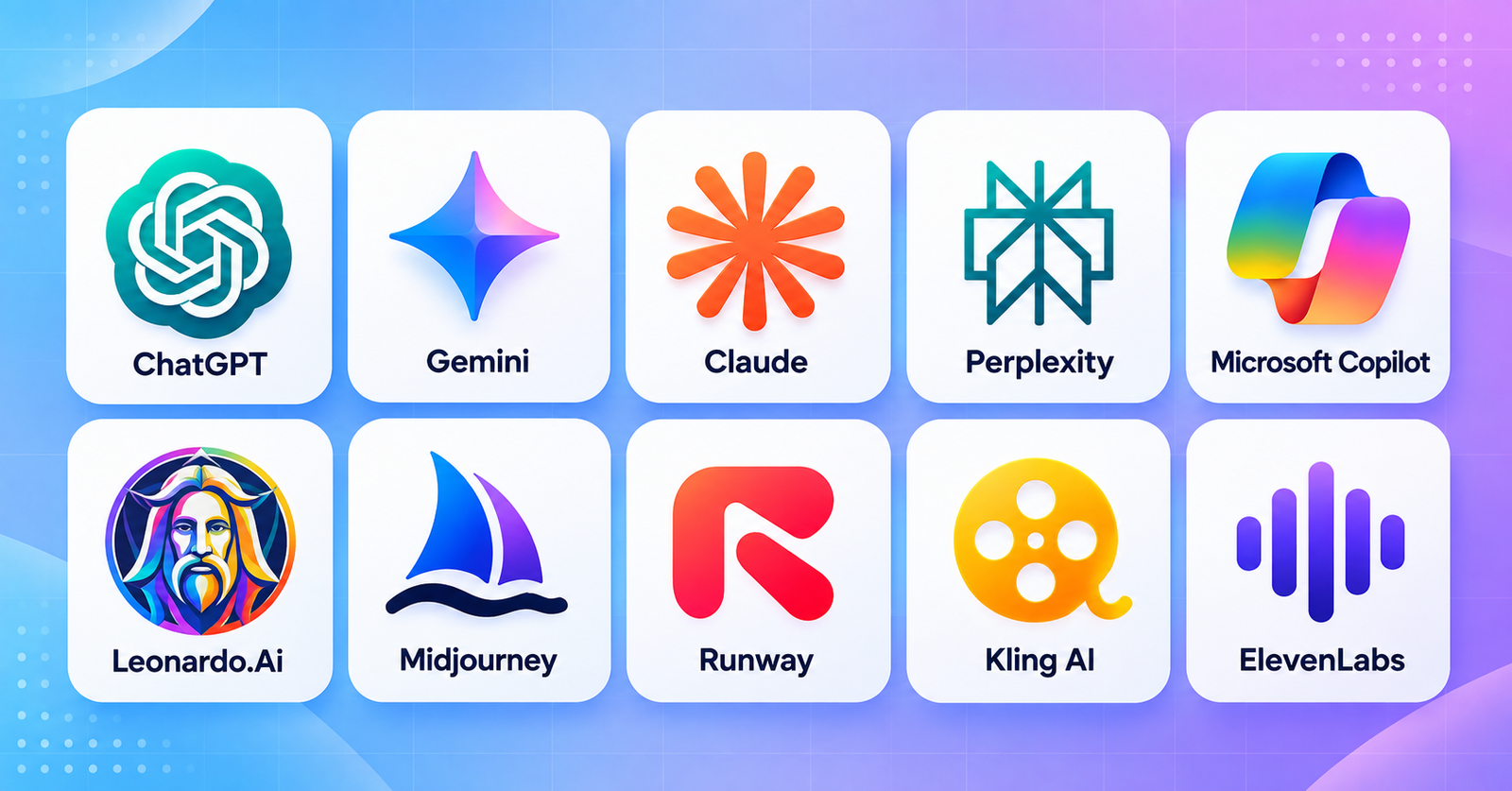
    For that reason, here are 10 of the best AI tools this year for creators and productivity. I have ranked them from the most established to the most underrated. In addition, each tool is covered with its strengths and weaknesses, so you can pick what fits your needs.


    1. ChatGPT Is Still the Most Versatile

    For starters, ChatGPT remains the most popular AI assistant in the world, with over 1.1 billion monthly users. The latest GPT-6 Astra model offers strong reasoning, a Deep Research feature that produces full reports with citations, and a natural voice mode.

    What makes it interesting is that ChatGPT can be accessed for free before you even create an account. Just open chatgpt.com and start typing your prompt.

    Key Features: Deep Research, voice mode, image analysis, free image generation, custom GPTs, and collaborative projects.

    Pros: Most versatile in its class, largest ecosystem, high reasoning quality, free access without an account, and integration across many platforms.

    Cons: No native video generation, Pro pricing is quite steep, and occasional downtime during peak traffic.

    Link and Check Subscription Plans: chatgpt.com


    2. Gemini Delivers the Strongest Multimodal Experience

    Meanwhile, Gemini is ChatGPT’s toughest competitor. With a 27.7 percent market share and 662 million monthly users, Gemini has grown rapidly thanks to its integration with the Google ecosystem. Its multimodal capability stands out, generating images through Nano Banana and video through Veo 3.

    Key Features: Integration with Gmail, Docs, Drive, Calendar, Maps, YouTube, and Photos. Context up to 1 million tokens. Google Flow for film production.

    Pros: Most complete multimodal features, native integration with the Google ecosystem, 1 million token context, and video generation capability.

    Cons: The Ultra plan is quite expensive, not all features are available in every country, and the interface can be confusing for new users.

    Link and Check Subscription Plans: gemini.google.com


    3. Claude Offers the Deepest Reasoning

    On the other hand, Claude from Anthropic holds the third position with a 10.3 percent market share and around 245 million users. Claude excels at deep reasoning, long document analysis, and programming tasks.

    Key Features: Long document analysis, Claude Code, Claude Design, Claude Science, Chrome and Microsoft 365 integration, and conversation memory.

    Pros: Deepest reasoning in its class, most natural writing output, favored by writers and developers, and offers an annual discount.

    Cons: Cannot generate video, smaller user base than ChatGPT and Gemini, and limited free features.

    Link and Check Subscription Plans: claude.ai


    4. Perplexity Provides Ad-Free AI Search

    Interestingly, Perplexity is not just a chatbot. It is an AI-powered search engine that delivers direct answers with citations. Its search results are clean, with no ads or sponsored links at the top.

    Key Features: AI search with citations, access to multiple AI models, unlimited file uploads, AI image generation, and Custom Spaces.

    Pros: Answers always come with sources, clean ad-free display, access to multiple AI models at once, and great for quick research.

    Cons: Not suitable for heavy creative tasks, limited free features, and not ideal for complex coding.

    Link and Check Subscription Plans: perplexity.ai


    5. Microsoft Copilot Excels at Enterprise Productivity

    In contrast, Copilot integrates directly into Microsoft 365, from Word, Excel, PowerPoint, to Outlook. It is ideal for companies already using the Microsoft ecosystem, with enterprise-grade data security.

    Key Features: Integration with Word, Excel, PowerPoint, Outlook, Teams, and Edge. GPT-5.4 and o3 models. Data is not used for model training.

    Pros: Best integration for Microsoft 365 users, enterprise data security, and ideal for corporate teams.

    Cons: Less useful if you do not use the Microsoft ecosystem, per-user pricing is quite high, and free features are very limited.

    Link and Check Subscription Plans: copilot.cloud.microsoft


    6. Leonardo.Ai Provides Free Commercial Images

    What is more, Leonardo.Ai offers high-quality image generation with a generous free tier. The platform has been used by over 18 million creators for character design, game assets, concept art, and product photography.

    Key Features: 150 free tokens per day, 30 to 70 images, commercial use allowed, and a variety of models and styles.

    Pros: Most generous free tier, commercial use allowed, various models and styles, and great for game assets.

    Cons: Free tier images are public, quality is still below Midjourney, and the interface is quite dense for beginners.

    Link and Check Subscription Plans: leonardo.ai


    7. Midjourney Delivers the Best Artistic Quality

    Still, Midjourney remains the benchmark for AI image generation quality. Its output is often considered the most artistic and aesthetic compared to competitors. The team behind it is small, around 60 people, but focuses entirely on quality.

    Key Features: Best artistic quality, various styles and parameters, and access via Discord or web.

    Pros: Best image quality in its class, most aesthetic results, and ideal for professional artistic work.

    Cons: No free tier, Discord access is confusing for beginners, and no video features.

    Link and Check Subscription Plans: midjourney.com


    8. Runway Generates AI Video Without Watermark

    Additionally, Runway is one of the most mature AI video generation tools available today. What sets it apart is that its free tier allows watermark-free exports, which is rare. Mobile apps are available for iOS and Android.

    Key Features: Watermark-free exports on the free tier, AI video generation, video editing, and access via browser or mobile.

    Pros: Watermark-free free tier, most mature video tool, mobile apps available, and ideal for filmmakers.

    Cons: Paid plans are quite expensive, requires high-spec hardware, and the learning curve is fairly steep.

    Link and Check Subscription Plans: runwayml.com


    9. Kling AI Offers Affordable Video with Native Audio

    Furthermore, Kling AI from Kuaishou offers high-quality video generation at an affordable price. Its free tier provides 66 daily credits. Kling supports clips up to 15 seconds with native audio.

    If you are just starting with AI video, begin here. It is the most budget-friendly option in its class.

    Key Features: 66 free credits per day, clips up to 15 seconds with native audio, and various video styles.

    Pros: Cheapest in the AI video class, generous free tier, native audio, and ideal for social media content.

    Cons: Clip duration limited to 15 seconds, quality still below Runway, and access from some regions can be slow.

    Link and Check Subscription Plans: kling.ai


    10. ElevenLabs Produces Natural AI Voice

    Finally, ElevenLabs is the industry standard for text-to-speech and voice cloning. Its voice quality is extremely natural, supports multiple languages, and can mimic intonation and speaking style.

    Key Features: Natural text-to-speech, multi-language voice cloning, and professional audio quality.

    Pros: Most natural voice quality, multi-language support, accurate voice cloning, and pricing starts at $5 per month.

    Cons: Limited free quota, voice cloning requires sufficient voice samples, and no video features.

    Link and Check Subscription Plans: elevenlabs.io


    Conclusion

    The ten AI tools above are more than enough for content creators and productivity workers. ChatGPT and Gemini serve as the main foundation. Meanwhile, Claude is for those who need deep reasoning. In addition, Leonardo.Ai, Midjourney, Runway, Kling, and ElevenLabs cover your visual and audio needs.

    Each has its strengths and weaknesses. No single tool is perfect for every need. What matters most is choosing according to your work, starting with the free tier, and upgrading only when you truly hit the limit.

    If your budget is tight, start with the free tier first. Upgrade only when you really need to.

    Which one will you try first? Let me know in the comments.

    Read also: 10 Best AI Coding Tools This Year, One Offers 2,000 Free Requests per Day
  • 7 Best AI Note-Taking Apps This Year, One Is Completely Free

    7 Best AI Note-Taking Apps This Year, One Is Completely Free

    Quick Overview

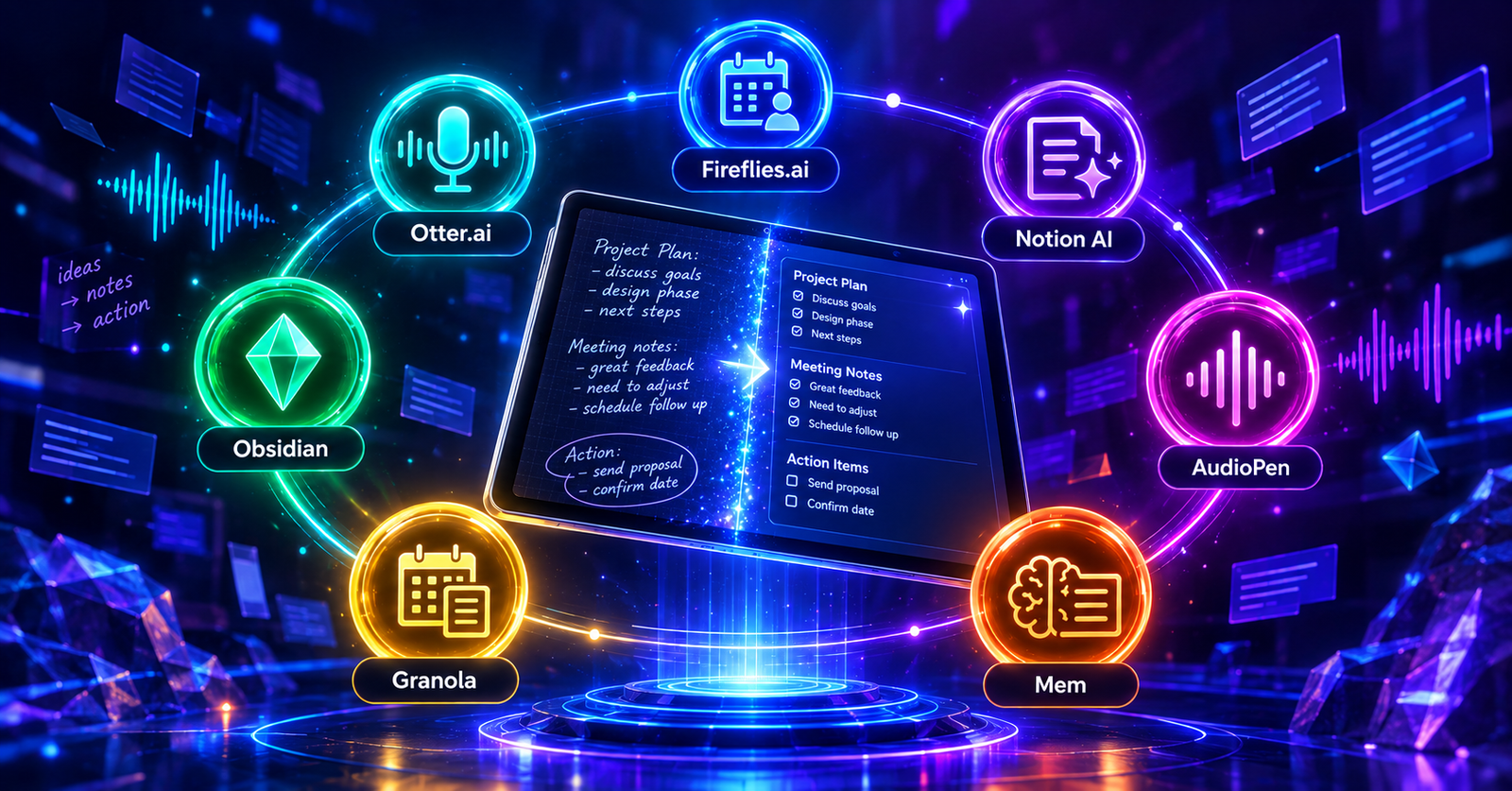
    This year’s lineup includes Otter.ai, which offers 300 free transcription minutes per month. Meanwhile, for unlimited transcription, Fireflies.ai is the better pick, though its AI summaries are capped. Students and casual users, however, may prefer AudioPen since it is completely free and requires no sign-up. In addition, Notion AI starts at $10 per month and integrates directly into your workspace. Still, keep in mind that Mem and Granola have no free tier.


    Introduction

    There is an AI note-taking app that is completely free. There is also one that records, transcribes, and summarizes your meetings automatically. However, this year the options for note-taking apps are more powerful and more affordable than ever.

    The problem is, most people are still typing notes manually or relying on basic note apps. However, AI-powered tools have changed how we capture information forever.

    For that reason, here are 7 of the best AI note-taking apps this year. I have ranked them from the most established to the most underrated. In addition, each tool is covered with its strengths and weaknesses, so you can pick what fits your needs.


    1. Otter.ai Offers the Best Free Transcription

    First of all, Otter.ai remains one of the most popular AI note-taking tools. In fact, it records meetings, transcribes speech in real time, and generates summaries with action items. The free tier gives you 300 transcription minutes per month, which is generous for casual users.

    Key Features: Real-time transcription, AI meeting summaries, action item extraction, speaker identification, and integration with Zoom, Google Meet, and Microsoft Teams.

    Pros: Most generous free tier for transcription, accurate speaker identification, works with all major video call platforms, and supports live captions.

    Cons: Free tier limited to 300 minutes per month, English-only transcription on the free plan, and AI summaries are basic compared to paid competitors.

    Link and Check Subscription Plans: otter.ai


    2. Fireflies.ai Delivers Unlimited Free Transcription

    Meanwhile, Fireflies.ai offers one of the most generous free tiers in the market. It provides unlimited transcription, although AI summaries are capped. Additionally, the tool joins your calendar automatically and records meetings without manual setup, which saves a lot of time.

    Key Features: Unlimited transcription, AI meeting summaries, action item tracking, calendar integration, and support for Zoom, Google Meet, and Teams.

    Pros: Unlimited free transcription, automatic meeting joining, works across multiple platforms, and includes a mobile app.

    Cons: AI summaries limited on the free tier, no offline recording, and interface can feel cluttered for new users.

    Link and Check Subscription Plans: fireflies.ai


    3. Notion AI Integrates Into Your Workspace

    On the other hand, Notion AI is not a standalone note-taking app. It integrates directly into Notion, allowing you to summarize, rewrite, and expand notes inside your existing workspace. It also supports AI-powered database queries and custom agents, making it a strong option for teams already on the platform.

    Key Features: In-workspace AI assistant, note summarization, text rewriting, database queries, and custom AI agents.

    Pros: Seamless integration with Notion, powerful for teams already using the platform, supports custom agents, and keeps all notes in one place.

    Cons: Requires a Notion subscription to be useful, no standalone recording feature, and pricing adds up for teams.

    Link and Check Subscription Plans: notion.so


    4. AudioPen Is Completely Free

    Interestingly, AudioPen is a completely free AI note-taking app. You speak into it, and it transforms your rambling voice notes into clean, structured text. Moreover, no sign-up is required for basic use, which makes it one of the easiest tools to try.

    Key Features: Voice-to-text transformation, AI rewriting for clarity, no sign-up needed, and works directly in the browser.

    Pros: Completely free, no sign-up required, excellent for quick voice notes, and produces clean structured text.

    Cons: No meeting recording, no transcription of long files, and limited advanced features compared to paid tools.

    Link and Check Subscription Plans: audiopen.ai


    5. Mem Provides an AI-First Note Experience

    In contrast, Mem is built from the ground up as an AI-first note-taking app. It captures notes automatically, organizes them with AI, and surfaces relevant information when you need it. As a result, it feels less like a folder system and more like a personal AI assistant, which is exactly what heavy note-takers want.

    Key Features: AI-powered note organization, automatic tagging, smart search, and contextual recommendations.

    Pros: Truly AI-first design, excellent for knowledge workers, smart search across all notes, and reduces manual organization.

    Cons: No free tier, higher price point, and requires a shift in how you take notes.

    Link and Check Subscription Plans: mem.ai


    6. Granola Excels at Meeting Notes

    What is more, Granola is designed specifically for meeting notes. It listens to your meetings, combines your typed notes with AI-generated summaries, and produces a clean record without needing a bot to join the call. It works quietly in the background, which many professionals appreciate.

    Key Features: Meeting note enhancement, AI summaries, no bot joining calls, and clean output formatting.

    Pros: No meeting bot required, blends typed notes with AI output, excellent formatting, and ideal for professionals.

    Cons: No free tier, macOS-first (limited platform support), and not suitable for non-meeting note-taking.

    Link and Check Subscription Plans: granola.ai


    7. Obsidian Supports AI Note-Taking Locally

    Still, Obsidian is not a dedicated AI tool, but its plugin ecosystem turns it into a powerful AI note-taking app. With community plugins, you can add AI summarization, smart search, and automatic linking between notes. All data stays local, which is a major advantage for privacy-focused users.

    Key Features: Local-first note storage, AI plugins for summarization and search, automatic linking, and a large plugin ecosystem.

    Pros: Complete data privacy, works offline, highly customizable, and free for personal use.

    Cons: Requires technical setup for AI features, no built-in transcription, and the learning curve is steep for beginners.

    Link and Check Subscription Plans: obsidian.md


    Conclusion

    The seven AI note-taking apps above cover a wide range of needs. Otter.ai and Fireflies.ai are the top picks for meeting transcription. Meanwhile, Notion AI is ideal for teams already using Notion. In addition, AudioPen is the best choice for quick voice notes, and it is completely free. Furthermore, Mem and Granola serve professionals who want a more polished AI-first experience. Finally, Obsidian suits users who prioritize privacy and customization.

    Each has its strengths and weaknesses. No single tool is perfect for every need. What matters most is choosing according to your workflow, starting with the free tier, and upgrading only when you truly hit the limit.

    Which one will you try first? Let me know in the comments.

    Read also: 10 Best AI Tools for Creators and Productivity This Year

  • How to Monetize YouTube This Year (Requirements & Tips)

    How to Monetize YouTube This Year (Requirements & Tips)

    Introduction

    There is a YouTube channel with 1,000 subscribers that gets approved in a week. There is also one with 10,000 subscribers that gets rejected three times. However, the difference is rarely about numbers.

    The problem is, most creators focus only on subscriber count and watch hours. Meanwhile, YouTube’s review team looks at originality, consistency, and policy compliance first.

    For that reason, here is a complete guide on how to monetize YouTube this year. I have ranked the steps from the most important to the most overlooked. In addition, each section includes common mistakes so you can avoid them before applying.


    1. Meet the Basic Requirements First

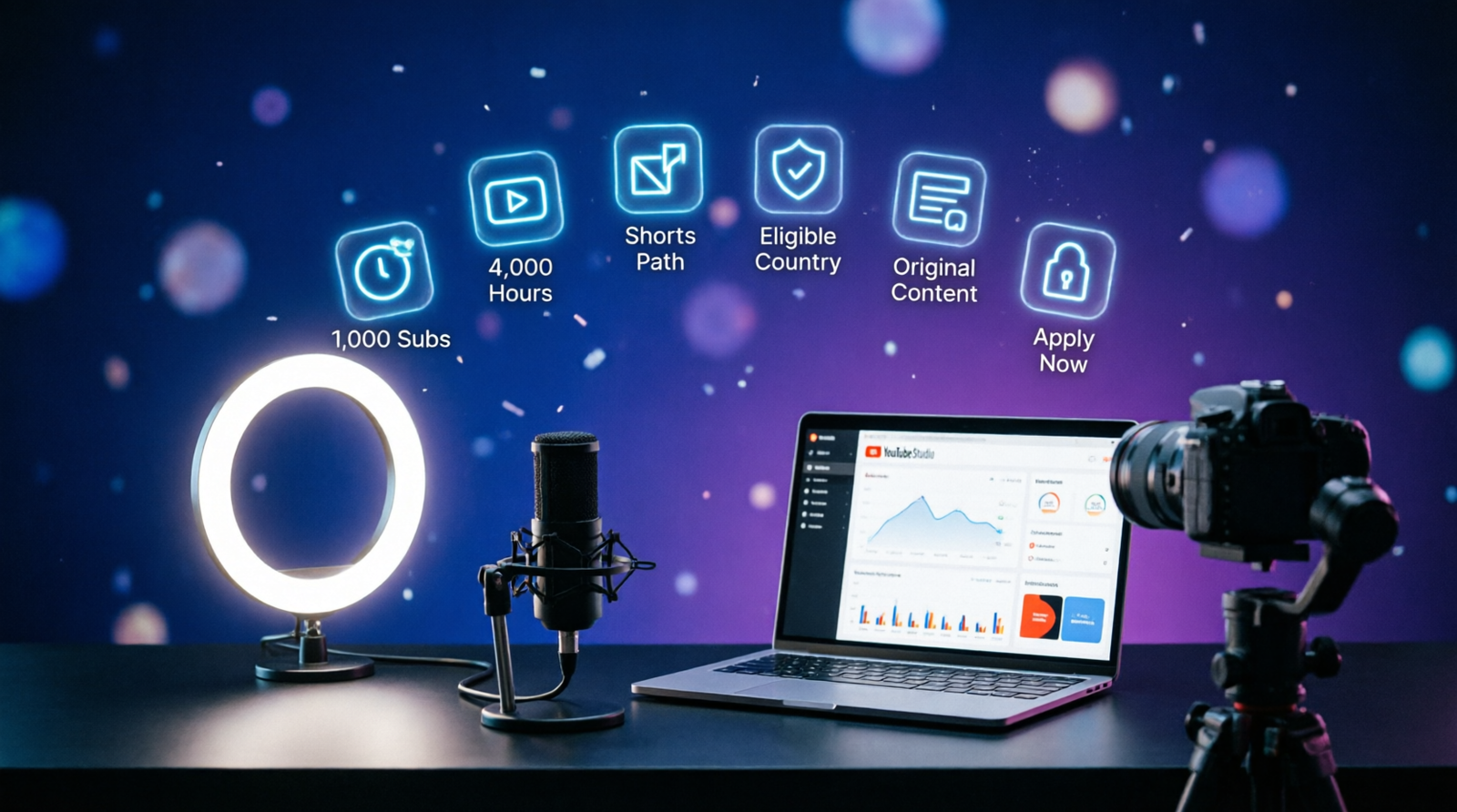
    First of all, you need to meet the minimum thresholds. The standard program requires 1,000 subscribers. You also need 4,000 valid public watch hours in the past 12 months. That means your watch time must come from public videos. Private and unlisted videos do not count.

    Key Requirements: 1,000 subscribers, 4,000 public watch hours in 12 months, 2-step verification enabled, AdSense account linked, and no active Community Guidelines strikes.

    Pros: Clear and measurable goals, tracked directly in YouTube Studio, and no application fee.

    Cons: Watch hours reset if you do not maintain activity, subscriber count can drop, and approval is not guaranteed even after meeting thresholds.

    Link and Check Requirements: youtube.com/creators


    2. Understand the Shorts Path

    Meanwhile, YouTube Shorts has a separate path. You need 1,000 subscribers. You also need 10 million valid public Shorts views within 90 days. This is harder than it sounds. Shorts views count differently from long-form watch time.

    Key Requirements: 1,000 subscribers, 10 million Shorts views in 90 days, original content, and compliance with monetization policies.

    Pros: Faster growth potential, lower barrier for viral content, and revenue sharing from the Shorts feed.

    Cons: 10 million views is a high bar, revenue per view is lower than long-form, and viral spikes rarely sustain.

    Link and Check Requirements: youtube.com/shorts


    3. Check the Lower Tier for Smaller Creators

    On the other hand, YouTube now offers a lower tier. At 500 subscribers, you can access fan funding features. These include Super Thanks, Super Chat, and channel memberships. That means you can start earning before hitting the full threshold.

    Key Requirements: 500 subscribers, 3 valid public uploads in the last 90 days, 3,000 watch hours in 12 months or 3 million Shorts views in 90 days.

    Pros: Lower barrier to entry, access to fan funding, and early monetization experience.

    Cons: No ad revenue yet, limited features, and still requires consistent uploads.

    Link and Check Requirements: youtube.com/creators


    4. Confirm Your Country Is Eligible

    Interestingly, monetization is not available everywhere. YouTube maintains a list of eligible countries. If your country is not on the list, you cannot apply yet. This applies even if you meet the thresholds.

    Key Requirements: Residence in an eligible country, valid payment method, and tax information submitted.

    Pros: Once eligible, the process is straightforward and fully digital.

    Cons: Country list changes slowly, some regions wait years, and VPN workarounds violate policy.

    Link and Check Requirements: youtube.com/creators


    5. Avoid Reused Content

    In contrast, reused content is the top rejection reason. This includes compilations and reaction videos without commentary. It also includes content taken from other channels. YouTube wants original content. Repackaged material rarely passes review.

    Key Requirements: Original commentary, transformative edits, and clear added value.

    Pros: Original content builds long-term channel authority and audience trust.

    Cons: Takes more effort, requires scripting and editing skills, and slower growth at the start.

    Link and Check Requirements: youtube.com/creators


    6. Build a Consistent Upload Schedule

    What is more, consistency matters more than frequency. YouTube’s algorithm rewards channels that upload predictably. A weekly schedule beats irregular daily uploads. This is one of the most overlooked factors.

    Key Requirements: Predictable schedule, consistent content quality, and audience retention above 50 percent.

    Pros: Algorithm favors consistency, audience knows when to expect content, and retention improves over time.

    Cons: Requires discipline, one missed week can slow momentum, and quality must stay high.

    Link and Check Requirements: youtube.com/creators


    7. Optimize Titles and Thumbnails

    Still, titles and thumbnails decide whether anyone clicks. A great video with a weak thumbnail gets ignored. YouTube’s own data shows this clearly. Click-through rate is one of the strongest signals for promotion. It matters more than upload frequency.

    Key Requirements: Clear titles, custom thumbnails, readable text, and emotional triggers without clickbait.

    Pros: Higher click-through rate, better algorithm promotion, and more watch time.

    Cons: Requires design skills, testing takes time, and clickbait can hurt long-term trust.

    Link and Check Requirements: youtube.com/creators


    8. Track Watch Time, Not Just Views

    Additionally, watch time matters more than raw views. A video with 10,000 views and 70 percent retention beats one with 50,000 views and 20 percent. YouTube promotes videos that keep people watching. So focus on retention, not vanity metrics.

    Key Requirements: Average view duration above 50 percent, retention graphs reviewed weekly, and audience feedback monitored.

    Pros: Better algorithm performance, stronger subscriber conversion, and more ad revenue per view.

    Cons: Requires constant content improvement, harder to fake, and slower to see results.

    Link and Check Requirements: youtube.com/creators


    9. Apply Through YouTube Studio

    Furthermore, the application happens inside YouTube Studio. Go to the Monetization tab. Review the requirements and click Apply. YouTube reviews applications within a few weeks. Sometimes it is faster. Sometimes it takes longer.

    Key Requirements: Monetization tab unlocked, all requirements met, and AdSense account linked.

    Pros: Simple process, no paperwork, and clear status updates.

    Cons: Review times vary, rejection reasons are sometimes vague, and reapplication requires a 30-day wait.

    Link and Check Requirements: studio.youtube.com


    10. Avoid Common Policy Mistakes

    Finally, most rejections happen because of policy violations. Reused content, misleading metadata, and fake engagement are the top three. Avoiding them is simpler than fixing them later. Once you are flagged, recovery takes time.

    Key Requirements: Original content, honest metadata, no purchased subscribers or views, and clean Community Guidelines record.

    Pros: Once approved, monetization is stable and long-term.

    Cons: Some mistakes are permanent, appeals take time, and repeated violations can end monetization forever.

    Link and Check Requirements: youtube.com/creators


    Conclusion

    Monetizing YouTube this year is less about hitting numbers. It is more about building a real channel. The 1,000 subscriber and 4,000 watch hour thresholds matter. However, they are not the whole story. Meanwhile, Shorts creators face a separate path with its own rules. In addition, the lower tier at 500 subscribers gives smaller creators an early start. However, reused content and policy violations remain the biggest rejection reasons.

    Each step has its own requirements and pitfalls. No single trick guarantees approval. What matters most is creating original content, uploading consistently, and applying only when you truly meet the requirements.

    Which step are you on right now? Let me know in the comments.

    Read also: 10 Best AI Tools for Creators and Productivity This Year

  • 10 Best Free Video Editing Software for PC This Year

    10 Best Free Video Editing Software for PC This Year

    This year’s lineup includes DaVinci Resolve, which offers professional-grade editing for free. Meanwhile, Shotcut and OpenShot provide open-source alternatives with no watermark. For beginners, CapCut for PC delivers a clean interface with built-in effects. In addition, HitFilm Express combines editing with visual effects. However, most free editors limit export quality or add watermarks, so read carefully before downloading.


    Introduction

    There is a free video editor that rivals paid software. There is also one that is simple enough for a complete beginner. However, most people waste hours testing the wrong tools before finding the right one.

    The problem is, most free editors limit export quality, add watermarks, or crash on large projects. Meanwhile, a few genuinely free tools handle professional work without any of those problems.

    For that reason, here are 10 of the best free video editing software for PC this year. I have ranked them from professional-grade to beginner-friendly. In addition, each tool is covered with its strengths and weaknesses, so you can pick what fits your needs.


    1. DaVinci Resolve Offers Professional Editing for Free

    First of all, DaVinci Resolve is the closest thing to professional editing software available for free. It is used in Hollywood productions and offers color grading tools that paid competitors cannot match. The free version is fully functional, not a trial.

    Key Features: Advanced color grading, multi-track timeline, Fairlight audio post-production, Fusion visual effects, and 4K export.

    Pros: Professional-grade tools, no watermark, no time limit, and regular updates from Blackmagic Design.

    Cons: Steep learning curve, requires a powerful PC, and some features are locked behind the paid Studio version.

    Link and Check Subscription Plans: blackmagicdesign.com/products/davinciresolve


    2. Shotcut Provides Open Source Power

    Meanwhile, Shotcut is a fully open-source video editor with no watermark and no restrictions. It supports hundreds of formats and runs on Windows, macOS, and Linux. The interface is more technical than beginner tools, but powerful.

    Key Features: Wide format support, multi-track editing, GPU acceleration, and no watermark on exports.

    Pros: Completely free and open source, no watermark, supports many formats, and works on all platforms.

    Cons: Interface feels dated, less intuitive than paid tools, and some features require plugins.

    Link and Check Subscription Plans: shotcut.org


    3. OpenShot Is Beginner-Friendly and Free

    On the other hand, OpenShot is designed for beginners. It has a clean interface, drag-and-drop timeline, and built-in animations. It is fully open source and adds no watermark.

    Key Features: Drag-and-drop timeline, built-in titles and animations, cross-platform support, and no watermark.

    Pros: Very easy to learn, completely free, no watermark, and includes useful templates.

    Cons: Crashes on large projects, limited advanced features, and slower rendering than competitors.

    Link and Check Subscription Plans: openshot.org


    4. HitFilm Express Combines Editing and VFX

    Interestingly, HitFilm Express combines video editing with visual effects in one package. It is popular among action-focused creators and YouTubers who need effects without expensive software.

    Key Features: Built-in VFX, motion tracking, 3D compositing, and support for 4K export.

    Pros: Free version is powerful, VFX tools included, and great for action videos.

    Cons: Requires account creation, some effects are paid add-ons, and demands a strong PC.

    Link and Check Subscription Plans: fxhome.com


    5. CapCut for PC Offers Modern Editing

    In contrast, CapCut for PC is a relatively new option built by ByteDance. It offers a modern interface, auto-captions, and built-in effects. It is especially popular for short-form content.

    Key Features: Auto-captions, background removal, built-in effects, and direct export to TikTok.

    Pros: Modern and clean interface, great for short-form video, free with no watermark, and fast rendering.

    Cons: Limited advanced features, requires account for some features, and heavier than it looks.

    Link and Check Subscription Plans: capcut.com


    6. VSDC Free Video Editor Handles Complex Projects

    What is more, VSDC Free Video Editor is a non-linear editor with advanced features usually found in paid tools. It supports chroma key, masking, and motion tracking without cost.

    Key Features: Non-linear editing, chroma key, masking, motion tracking, and 4K export.

    Pros: Advanced features for free, no watermark, and handles complex projects.

    Cons: Interface is not beginner-friendly, performance issues on older PCs, and limited customer support.

    Link and Check Subscription Plans: vsdc-free-video-editor.com


    7. Lightworks Has a Hollywood Pedigree

    Still, Lightworks has been used in Hollywood films for decades. The free version offers professional tools with a 720p export limit, which is the main drawback.

    Key Features: Professional timeline, multi-cam editing, advanced trimming, and industry-standard tools.

    Pros: Hollywood-grade tools, stable and mature software, and free version is fully functional for editing.

    Cons: Free version limits export to 720p, requires account creation, and learning curve is steep.

    Link and Check Subscription Plans: lwks.com


    8. VideoPad Is Simple and Fast

    Additionally, VideoPad is a lightweight editor that is easy to learn. It is developed by NCH Software and offers a free version for non-commercial use.

    Key Features: Simple timeline, built-in effects, audio tools, and support for 360-degree video.

    Pros: Very easy to use, fast rendering, and good for simple projects.

    Cons: Free version is for non-commercial use only, limited advanced features, and pushes paid upgrades.

    Link and Check Subscription Plans: nchsoftware.com/videopad


    9. Blender Handles Video Editing and 3D

    Furthermore, Blender is known for 3D modeling, but it also includes a full video editor. It is completely free, open source, and used by professionals worldwide.

    Key Features: Video sequence editor, 3D integration, compositing, and support for complex workflows.

    Pros: Completely free, powerful 3D and video tools, and used by industry professionals.

    Cons: Interface is complex, video editor is not the primary focus, and requires powerful hardware.

    Link and Check Subscription Plans: blender.org


    10. iMovie Is Free on macOS

    Finally, iMovie is Apple’s free video editor for macOS. It is simple, fast, and integrated into the Apple ecosystem. It is not available for Windows.

    Key Features: Simple timeline, built-in trailers, 4K export, and seamless iCloud integration.

    Pros: Free on macOS, very easy to use, fast rendering, and great for beginners.

    Cons: macOS only, limited advanced features, and no Windows version.

    Link and Check Subscription Plans: apple.com/imovie


    Conclusion

    The 10 free video editors above cover a wide range of needs. DaVinci Resolve is the top pick for professional work. Meanwhile, Shotcut and OpenShot serve open-source users well. In addition, CapCut for PC is ideal for short-form creators, while HitFilm Express handles action videos. However, each tool has trade-offs in learning curve, performance, or export limits.

    Each has its strengths and weaknesses. No single free editor is perfect for every project. What matters most is choosing according to your needs, testing two or three options, and committing to one long enough to master it.

    Which editor will you try first? Let me know in the comments.

    Read also: How to Monetize YouTube This Year, Requirements and Tips to Get Approved

  • 10 Best AI Coding Tools This Year (One Is Free)

    10 Best AI Coding Tools This Year (One Is Free)

    What You Need to Know

    This year’s lineup includes Qwen Code, which is free with 2,000 requests per day and no credit card needed. Meanwhile, Z.ai‘s annual plan starts at just $12.60 per month, saving 30 percent. For those who need image and video generation, Wan.ai‘s annual plan cuts the price by 50 percent, down to $5 per month. In addition, Claude’s annual plan saves 17 percent. However, note that GitHub Copilot has no annual discount.


    Introduction

    There is an AI coding assistant that is free with 2,000 requests per day. There is also one that costs just $12 per month, yet performs almost on par with tools priced at $20. However, this year the options are more numerous and more affordable than ever.

    The problem is, most people are still using the same tools they did two years ago. Meanwhile, the landscape has changed completely.

    For that reason, here are 10 of the best AI coding tools this year. I have ranked them from the most established to the most underrated. In addition, each tool is covered with its strengths and weaknesses, so you can pick what fits your needs.


    1. GitHub Copilot Remains the King, But Things Have Changed

    First of all, GitHub Copilot remains the most popular coding assistant. Its integration is clean across VS Code, JetBrains, and Neovim. Its code completion has become the industry standard.

    However, starting in June this year, the system shifted to usage-based billing. The Pro plan now gives you $15 worth of usage, base $10 plus flex $5. This means if you frequently use agent mode or premium models, credits can run out faster.

    Key Features: Unlimited code completion, chat and agent mode, premium model access, integration with VS Code, JetBrains, and Neovim.

    Pros: Most mature ecosystem, best integration across many IDEs, most accurate code completion, and a free tier is available.

    Cons: No annual discount, the new billing system drains credits faster, and premium models require extra cost.

    Link and Check Subscription Plans: github.com/copilot


    2. Cursor Is the AI Editor That Makes VS Code Feel Outdated

    Meanwhile, Cursor is not just a plugin. It is a fork of VS Code built from the ground up for AI. Its Composer mode and Agent mode can write code autonomously, fix bugs, and build entire features from a text description.

    Key Features: Composer mode, Agent mode, access from web and mobile, Slack integration, and live server preview inside the app.

    Pros: Most mature AI-first workflow, very powerful agent mode, accessible from web and mobile, and a 20 percent annual discount.

    Cons: Monthly pricing is higher than Copilot, requires a fairly powerful machine, and sometimes conflicts with other VS Code extensions.

    Link and Check Subscription Plans: cursor.com


    3. Z.ai Emerges as the New Challenger with Aggressive Pricing

    On the other hand, Z.ai offers ZCode, a desktop coding agent that competes directly with Cursor. What sets it apart is the price.

    The GLM Coding Plan Lite starts at $12.60 per month with a 30 percent annual discount, giving you 10,000 credits per week. The Pro plan is $56 per month, and Max is $117.60 per month. It supports over 20 agent tools, including Claude Code and popular IDEs.

    There is also a free Flash model for light usage. If your budget is tight but you need performance, this is a strong option.

    Key Features: ZCode desktop agent, GLM-5.3 with up to 1 million token context, free Flash model, BYOK support, and remote integration via WeChat, Feishu, and Telegram.

    Pros: Most aggressive pricing in its class, 30 percent annual discount, free Flash model, and BYOK support for other models.

    Cons: Still relatively new, English documentation is limited, and servers can be slow from some regions.

    Link and Check Subscription Plans: z.ai


    4. Qwen Offers 2,000 Free Requests per Day
    Interestingly, Qwen from Alibaba offers one of the most generous free tiers in its class. Qwen Code can be used for free with 2,000 requests per day via OAuth. No credit card required.

    The Qwen3.7 Max model is also competitive on global programming benchmarks. For API access, Qwen provides the Qwen3-Coder model at competitive prices.

    If you are just starting with AI coding and do not want to pay a cent, start here.

    Key Features: Qwen Code free with 2,000 requests per day, Qwen3.7 Max model, Qwen3-Coder for agentic coding, up to 1 million token context, and support for various agent frameworks.

    Pros: Most generous free tier, no credit card needed, competitive on global benchmarks, and up to 1 million token context.

    Cons: English documentation is limited, community support is smaller than Copilot’s, and servers can be slow in some regions.

    Link and Check Subscription Plans: qwen.ai


    5. Wan.ai Provides Image and Video Generation for Developers

    In contrast, Wan.ai is not a traditional coding assistant. It is an image and video generation tool from Alibaba, but it offers a CLI and MCP Server that can be integrated directly into a coding agent workflow.

    If you are building an application that needs visual assets programmatically, Wan.ai provides a clean integration path.

    Key Features: Wan CLI terminal integration, MCP Server for agents like Claude Code, Cursor, and VS Code, 18 model variants, and structured JSON output for scripting.

    Pros: CLI and MCP Server integration, 50 percent annual discount, 18 model variants, and ideal for creative applications.

    Cons: Not a traditional coding assistant, more niche, and requires API understanding for maximum use.

    Link and Check Subscription Plans: wan.ai


    6. Claude Delivers the Deepest Reasoning

    What is more, Claude from Anthropic excels at coding tasks that require deep reasoning. Claude Code can run directly in the terminal, preview the running server, and review code changes without leaving the application.

    Key Features: Long document analysis, Claude Code on desktop, server preview, and code review.

    Pros: Deepest reasoning in its class, cleanest code output, 17 percent annual discount, and ideal for complex problems.

    Cons: Monthly pricing is higher, no free tier as generous as Qwen’s, and access is sometimes restricted by region.

    Link and Check Subscription Plans: claude.ai


    7. Tabnine Prioritizes Code Privacy Above All

    Still, Tabnine is a coding assistant that prioritizes privacy. It does not store or send your code to the cloud. This makes it ideal for organizations with strict regulations.

    Key Features: Code privacy, not sent to the cloud, and suitable for organizations with strict regulations.

    Pros: Best privacy in its class, 34 percent annual discount, and ideal for companies with strict regulations.

    Cons: More limited features than competitors, monthly pricing is fairly high, and the free tier is very limited.

    Link and Check Subscription Plans: tabnine.com


    8. ChatGPT Is Not a Coding Tool, But It Is Useful

    Additionally, ChatGPT is not a dedicated coding tool. However, its ability to write and explain code is strong enough. It is ideal for developers who need a discussion partner on architecture, debugging, or learning a new programming language.

    Key Features: Deep Research, code analysis, error explanation, and programming language learning.

    Pros: Versatile, strong reasoning, great for architecture discussions, and free access available.

    Cons: Not a dedicated coding tool, no direct IDE integration, and no free tier for agent mode.

    Link and Check Subscription Plans: chatgpt.com


    9. Gemini Supports 1 Million Token Context

    Furthermore, Gemini has competitive coding capabilities, plus integration with Google Workspace and Android Studio. Its context reaches 1 million tokens, which is useful for reading large codebases at once.

    Key Features: 1 million token context, Android Studio integration, and large codebase analysis.

    Pros: Largest 1 million token context in its class, Android Studio integration, and competitive API pricing.

    Cons: Not yet as strong as Copilot for daily coding, the interface is less developer-friendly, and Ultra pricing is quite high.

    Link and Check Subscription Plans: gemini.google.com


    10. DeepSeek Is Open Source and Free

    Finally, DeepSeek is an open-source model that surprised the industry with performance approaching proprietary models. It is ideal for developers who need a free assistant for daily coding.

    Key Features: Open-source model, free, and performance approaching proprietary models.

    Pros: Completely free, open-source, performance approaching proprietary models, and can be self-hosted.

    Cons: Limited documentation, smaller community support, and servers can be slow in some regions.

    Link and Check Subscription Plans: deepseek.com


    Conclusion

    For developers this year, the choice of AI coding assistants is very diverse. GitHub Copilot and Cursor are the top picks for those who want an AI-first workflow. Meanwhile, Z.ai emerges as a serious challenger with aggressive pricing. In addition, Qwen offers Qwen Code, which is genuinely free with 2,000 requests per day, one of the best free tiers in its class. Wan.ai covers the needs of developers building applications with image and video generation via CLI or MCP Server.

    Each has its strengths and weaknesses. No single tool is perfect for every need. What matters most is choosing according to your workflow, starting with the free tier, and upgrading only when you truly hit the limit.

    Which one will you try first? Let me know in the comments.

  • 10 Best Free VPN Apps This Year, Only 3 Are Safe to Use

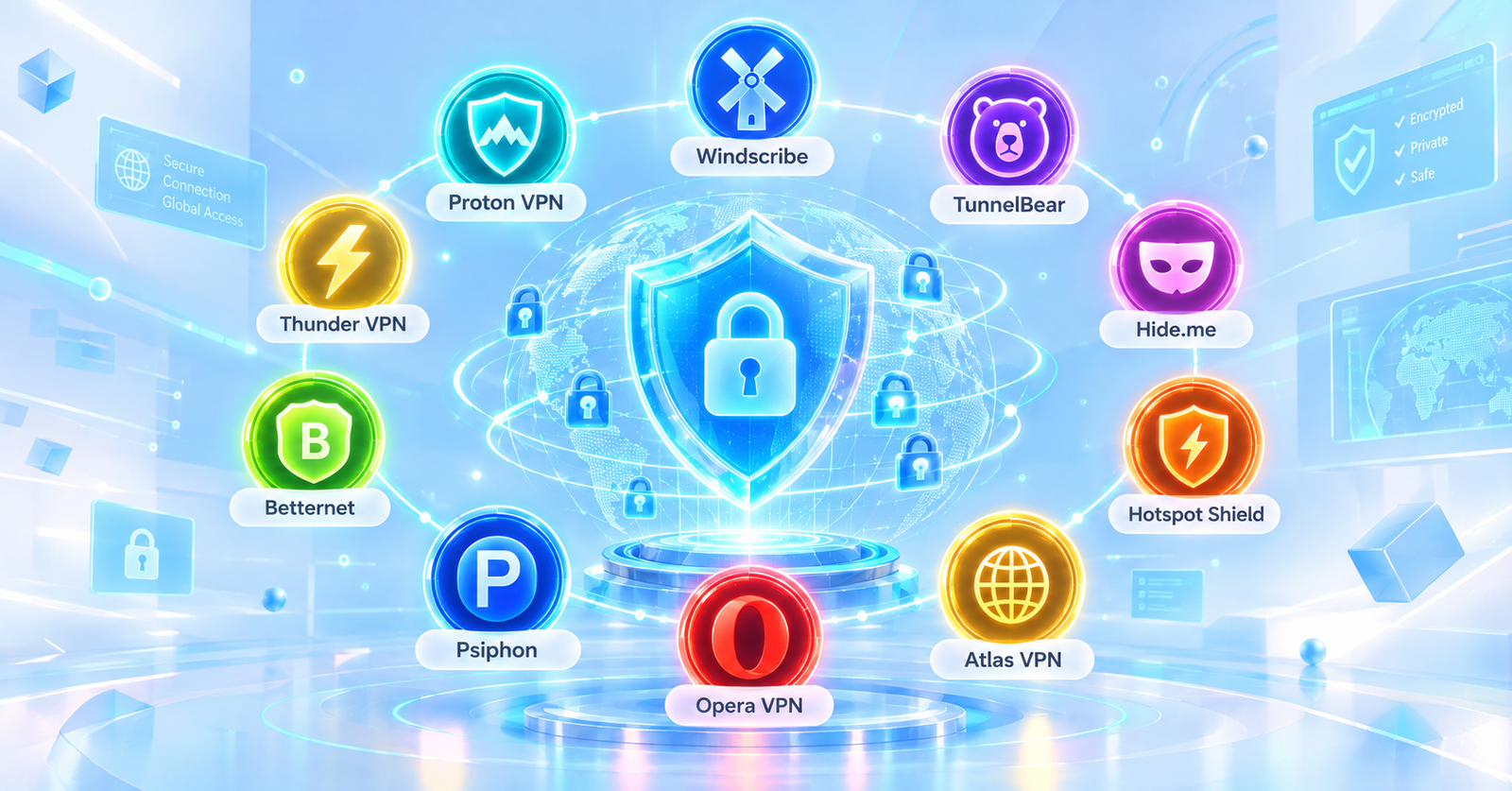
    10 Best Free VPN Apps This Year, Only 3 Are Safe to Use

    Before You Start

    This year’s lineup includes Proton VPN, which offers unlimited data with no ads on its free tier. Meanwhile, Windscribe gives you 10GB per month for free. For users who want simplicity, TunnelBear provides 2GB monthly with a clean interface. In addition, Hide.me offers 10GB per month with strong privacy policies. However, most other free VPNs either sell your data or limit you heavily.


    Introduction

    There is a free VPN that does not sell your data. There is also one that gives you unlimited bandwidth without ads. However, this year the market for free VPNs is more dangerous than ever.

    The problem is, most free VPN apps make money by collecting and selling user data. Meanwhile, legitimate free VPNs exist but they are rare and hard to find.

    For that reason, here are 10 of the best free VPN apps this year. I have ranked them from the safest to the ones you should avoid. In addition, each tool is covered with its strengths and weaknesses, so you can pick what fits your needs.


    1. Proton VPN Offers Unlimited Data for Free

    First of all, Proton VPN is widely considered the safest free VPN available. It offers unlimited data with no ads and no logs. The company is based in Switzerland, which has strong privacy laws. That matters a lot if privacy is your priority.

    Key Features: Unlimited data on free tier, no ads, no logs policy, Swiss-based company, and strong encryption.

    Pros: Truly unlimited data, no ads, strong privacy policy, and reliable connection speed.

    Cons: Only 5 server locations on the free tier, no streaming support, and slower speeds during peak hours.

    Link and Check Subscription Plans: protonvpn.com


    2. Windscribe Provides 10GB Free Monthly

    Meanwhile, Windscribe offers 10GB of free data per month, which is one of the most generous free tiers. It also includes a built-in ad blocker and supports multiple devices, which makes it a solid daily option.

    Key Features: 10GB free per month, built-in ad blocker, multi-device support, and servers in 10 countries.

    Pros: Generous free data, includes ad blocker, supports multiple devices, and works on all major platforms.

    Cons: Requires email confirmation for full 10GB, limited server locations, and speeds can vary.

    Link and Check Subscription Plans: windscribe.com


    3. TunnelBear Delivers Simple and Safe VPN

    On the other hand, TunnelBear is known for its simplicity and transparency. It offers 2GB of free data per month, which is enough for light browsing. The company undergoes annual security audits, so you can trust it more than most free options.

    Key Features: 2GB free per month, annual security audits, simple interface, and support for all major platforms.

    Pros: Very easy to use, transparent security audits, clean interface, and trusted brand.

    Cons: Only 2GB free per month, limited server locations, and no streaming support on free tier.

    Link and Check Subscription Plans: tunnelbear.com


    4. Hide.me Offers 10GB Free with Strong Privacy

    Interestingly, Hide.me provides 10GB of free data per month with a strict no-logs policy. It is based in Malaysia and offers good speeds for a free VPN. However, streaming is not supported on the free tier.

    Key Features: 10GB free per month, strict no-logs policy, no ads, and support for multiple devices.

    Pros: Generous free data, strong privacy policy, no ads, and good connection speeds.

    Cons: Only 5 server locations, no streaming on free tier, and requires account setup.

    Link and Check Subscription Plans: hide.me


    5. Hotspot Shield Provides Fast but Limited Free VPN

    In contrast, Hotspot Shield offers fast speeds on its free tier, but with a 500MB daily limit. It is owned by Aura, a security company, which adds some trust. Still, the daily cap makes it less useful for heavy browsing.

    Key Features: 500MB daily limit, fast speeds, simple interface, and available on all platforms.

    Pros: Fast connection, simple to use, available everywhere, and backed by a security company.

    Cons: Only 500MB per day, shows ads, and logs some user data.

    Link and Check Subscription Plans: hotspotshield.com


    6. Atlas VPN Is Now Part of Nord Security

    What is more, Atlas VPN was recently acquired by Nord Security, the company behind NordVPN. It offers 10GB per month free, but the future of the free tier is uncertain after the acquisition. For now, it remains a decent option.

    Key Features: 10GB free per month, no ads, simple interface, and available on major platforms.

    Pros: Generous free data, no ads, and backed by a major security company.

    Cons: Future of free tier uncertain, limited server locations, and no streaming support.

    Link and Check Subscription Plans: atlasvpn.com


    7. Opera VPN Comes Built Into the Browser

    Still, Opera VPN is not a standalone app. It is built directly into the Opera browser and offers unlimited free data with no setup required. That makes it one of the easiest options for casual users.

    Key Features: Built into Opera browser, unlimited free data, no sign-up required, and simple toggle.

    Pros: Completely free, unlimited data, no setup needed, and easy to use.

    Cons: Only works inside Opera browser, not a full VPN, and limited server locations.

    Link and Check Subscription Plans: opera.com


    8. Psiphon Focuses on Censorship Circumvention

    Additionally, Psiphon is designed for users in regions with internet censorship. It offers unlimited free data but is not intended for streaming or heavy use. In short, it serves a very specific purpose.

    Key Features: Unlimited free data, designed for censorship circumvention, and available on all platforms.

    Pros: Unlimited free data, works in restricted regions, and easy to set up.

    Cons: Not for streaming, slower speeds, and limited privacy features.

    Link and Check Subscription Plans: psiphon.ca


    9. Betternet Is Popular but Questionable

    Furthermore, Betternet is one of the most downloaded free VPNs. However, its privacy policy has been questioned by security researchers. It offers unlimited free data but shows ads, which is a red flag.

    Key Features: Unlimited free data, available on all platforms, and simple interface.

    Pros: Unlimited free data, easy to use, and available everywhere.

    Cons: Questionable privacy policy, shows ads, and logs user data.

    Link and Check Subscription Plans: betternet.co


    10. Thunder VPN Is Free but Risky

    Finally, Thunder VPN offers unlimited free data, but its privacy practices are unclear. It is best avoided if you care about your data. There are simply better free options available.

    Key Features: Unlimited free data, simple interface, and available on Android and iOS.

    Pros: Unlimited free data, simple to use, and available on mobile.

    Cons: Unclear privacy policy, potential data logging, and unreliable connection.

    Link and Check Subscription Plans: thunder-vpn.com


    Conclusion

    The ten free VPN apps above range from truly safe to genuinely risky. Proton VPN, Windscribe, and TunnelBear are the safest options this year. Meanwhile, Hide.me and Hotspot Shield offer good speeds but with limits. In addition, Atlas VPN, Opera VPN, and Psiphon serve specific use cases. However, Betternet and Thunder VPN should be avoided if privacy matters to you.

    Each has its strengths and weaknesses. No single free VPN is perfect for every need. What matters most is choosing according to your privacy needs, avoiding apps that log data, and upgrading to a paid plan only when you truly need more.

    Which one will you try first? Let me know in the comments.

    Read also: 7 Best AI Note-Taking Apps This Year, One Is Completely Free

  • How to Protect Your Data When Using Public Wi-Fi

    How to Protect Your Data When Using Public Wi-Fi

    Public Wi-Fi is convenient, but it is also one of the easiest places for attackers to steal data. To protect your data on public Wi-Fi, you need more than just caution. Meanwhile, most people connect without checking whether the network is legitimate. Public Wi-Fi is convenient, but it is also one of the easiest places for attackers to steal data. Meanwhile, most people connect without checking whether the network is legitimate. For safer browsing, always use a VPN and stick to HTTPS websites. In addition, enable two-factor authentication on all your important accounts. However, the biggest risk is not the network itself, but the habits people use on it.


    Introduction

    There is a public Wi-Fi network that is completely safe to use. There is also one that looks identical to it but steals everything you type. However, most people cannot tell the difference.

    The problem is, public Wi-Fi is designed for convenience, not security. Meanwhile, attackers know this and set up fake hotspots in cafes, airports, and hotels.

    For that reason, here is a complete guide on how to protect your data when using public Wi-Fi. I have broken it down by risk and solution, so you can apply it immediately. In addition, each section includes common mistakes so you can avoid them.


    1. Always Use a VPN on Public Wi-Fi

    First of all, a VPN is the single most effective protection on public Wi-Fi. It encrypts all your traffic, so even if someone intercepts it, they see only scrambled data. Without a VPN, your data travels in plain text on many networks.

    Why It Matters: Public Wi-Fi networks are often unencrypted. Anyone on the same network can potentially see what you send. A VPN closes that gap completely.

    How to Apply It: Use a trusted VPN before connecting. Proton VPN, Windscribe, and TunnelBear are safe free options. Avoid unknown free VPNs that sell your data.


    2. Check for HTTPS Before Entering Data

    Meanwhile, HTTPS encrypts the connection between your browser and the website. Look for the padlock icon in the address bar. If a site does not use HTTPS, do not enter any personal information.

    Why It Matters: Even with a VPN, HTTPS adds another layer of protection. It prevents attackers from reading data on the website itself.

    How to Apply It: Enable “HTTPS-Only Mode” in your browser. Chrome, Firefox, and Edge all support this. Avoid entering passwords on sites without HTTPS.


    3. Turn Off File Sharing and AirDrop

    On the other hand, file sharing features are a major risk on public networks. When enabled, other devices on the same network can sometimes access your files. This applies to Windows, macOS, and mobile devices.

    Why It Matters: Public networks are shared spaces. File sharing makes your device visible to strangers. Turning it off removes that exposure.

    How to Apply It: Disable file sharing in your system settings. On mobile, set AirDrop to “Contacts Only” or turn it off. Do the same with Bluetooth when not in use.


    4. Use Two-Factor Authentication Everywhere

    Interestingly, two-factor authentication (2FA) protects you even if your password is stolen. Even if an attacker captures your login, they cannot get past the second factor. This applies to email, banking, and social media.

    Why It Matters: Passwords alone are no longer enough. Data breaches happen constantly. 2FA blocks most account takeovers.

    How to Apply It: Enable 2FA on Gmail, banking apps, and social media. Use an authenticator app instead of SMS when possible. SMS can be intercepted on public networks.


    5. Avoid Sensitive Tasks on Public Wi-Fi

    In contrast, some activities should never be done on public Wi-Fi. Online banking, tax filing, and medical portal logins are all high-risk. Even with protection, the risk is not worth it.

    Why It Matters: Sensitive accounts cause the most damage if compromised. Financial and medical data cannot be easily changed like a password.

    How to Apply It: Wait until you are on a trusted network for banking. Use mobile data for urgent tasks. Save sensitive work for home or office Wi-Fi.


    6. Watch Out for Fake Hotspots

    What is more, attackers set up fake Wi-Fi networks with names that look legitimate. A network called “Cafe_Free_WiFi” might be real, or it might be a trap. Once you connect, everything you do is visible to the attacker.

    Why It Matters: Fake hotspots are one of the most common attack methods. They are easy to set up and hard to detect.

    How to Apply It: Always confirm the exact network name with staff. Avoid networks with generic names. Turn off “auto-connect to open networks” in your device settings.


    7. Keep Your Devices Updated

    Still, outdated software is a major risk on public Wi-Fi. Security patches fix vulnerabilities that attackers exploit. Every update you skip is a door left open.

    Why It Matters: Attackers target known vulnerabilities. Updates close those gaps. This applies to your OS, browser, and apps.

    How to Apply It: Enable automatic updates on all devices. Update your browser before using public Wi-Fi. Restart your device after major updates.


    8. Log Out of Accounts When Done

    Additionally, staying logged in on public Wi-Fi increases risk. If your device is lost or stolen, active sessions give immediate access. Logging out closes that window.

    Why It Matters: Sessions can be hijacked even after you leave the network. Logging out invalidates the session.

    How to Apply It: Log out of email, banking, and social media after use. Clear browser cookies on shared computers. Use incognito mode for sensitive searches.


    9. Use Mobile Data for Sensitive Tasks

    Furthermore, mobile data is almost always safer than public Wi-Fi. Cellular networks are encrypted by default. If you have mobile data available, use it for anything sensitive.

    Why It Matters: Mobile networks use strong encryption that is hard to intercept. Public Wi-Fi does not offer the same protection.

    How to Apply It: Use mobile data for banking, email, and work. Switch to public Wi-Fi only for browsing and streaming. Turn off “auto-join” for public networks.


    10. Forget the Network When You Leave

    Finally, make your device forget public networks after use. This prevents automatic reconnection next time. It also reduces exposure to fake hotspots with the same name.

    Why It Matters: Auto-reconnect is convenient but risky. Your device may connect to a malicious network without you knowing.

    How to Apply It: Go to Wi-Fi settings and select “Forget This Network.” Do this for every public network you use. Disable auto-join for open networks.


    How to Test If Your Connection Is Safe

    Additionally, you can check your connection safety in seconds. Look for the padlock icon in your browser. Visit a site like https://www.howsmyssl.com to check encryption. Use a VPN status indicator in your menu bar or system tray.

    If your VPN is on and the site uses HTTPS, you are reasonably safe. If either is missing, avoid entering any personal data.


    Conclusion

    Protecting your data on public Wi-Fi is less about avoiding networks and more about building safe habits. A VPN encrypts your traffic, and HTTPS adds a second layer. Meanwhile, two-factor authentication protects your accounts even if your password leaks. In addition, avoiding sensitive tasks and fake hotspots removes most of the risk. However, the simplest habits like logging out and forgetting networks often matter most.

    Each step builds on the others. No single tool makes you completely safe. What matters most is using a VPN, checking for HTTPS, and treating public Wi-Fi as a shared space.

    Which step do you already do? Let me know in the comments.

    Read also: 10 Best Free VPN Apps This Year, Only 3 Are Safe to Use

  • Best Facebook Management Tools for Business This Year

    Best Facebook Management Tools for Business This Year

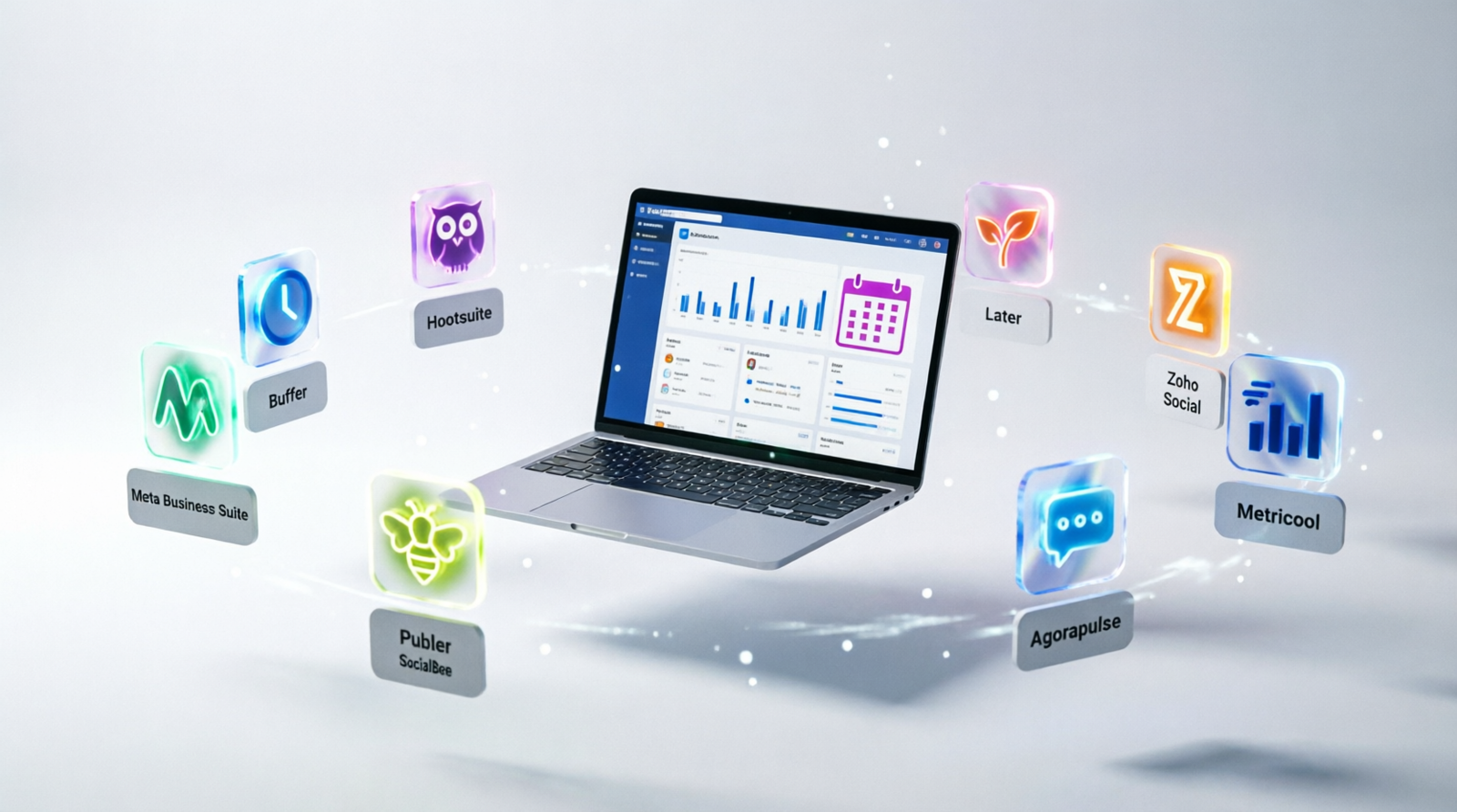
    This year’s lineup includes Meta Business Suite, which is completely free and handles most daily tasks. Meanwhile, Buffer offers simple scheduling with a free tier. For agencies, Hootsuite and Sprout Social provide advanced team features. In addition, Later and Publer focus on visual content planning. However, most tools charge per user, so pricing grows quickly as your team expands.


    Introduction

    There is a Facebook management tool that is completely free. There is also one built for agencies managing dozens of pages. However, most business owners waste months testing the wrong tools before finding the right one.

    The problem is, Facebook management covers many tasks. Scheduling, analytics, messaging, and ads all need different tools. Meanwhile, most platforms only do one or two of these well.

    For that reason, here are the best Facebook management tools for business this year. I have ranked them from the most complete to the most specialized. In addition, each tool is covered with its strengths and weaknesses, so you can pick what fits your needs.


    1. Meta Business Suite Handles Everything for Free

    First of all, Meta Business Suite is the official tool from Meta. It handles scheduling, messaging, analytics, and ads in one dashboard. The best part: it is completely free, with no user limits.

    Key Features: Post scheduling, unified inbox, basic analytics, ad management, and Instagram integration.

    Pros: Completely free, official Meta tool, handles most daily tasks, and works with Instagram.

    Cons: Limited advanced analytics, no team collaboration features, and interface can feel basic.

    Link and Check Subscription Plans: business.facebook.com


    2. Buffer Simplifies Scheduling

    Meanwhile, Buffer is one of the simplest scheduling tools available. It supports Facebook, Instagram, Twitter, LinkedIn, and Pinterest. The free tier allows up to three channels and ten scheduled posts per channel.

    Key Features: Simple scheduling, multi-platform support, basic analytics, and a clean interface.

    Pros: Very easy to use, generous free tier, supports multiple platforms, and reliable scheduling.

    Cons: Limited analytics on free plan, no inbox management, and advanced features require paid plans.

    Link and Check Subscription Plans: buffer.com


    3. Hootsuite Offers Advanced Team Features

    On the other hand, Hootsuite is built for teams and agencies. It supports multiple users, approval workflows, and detailed analytics. It is one of the oldest and most established tools in the market.

    Key Features: Team collaboration, approval workflows, advanced analytics, social listening, and multi-platform support.

    Pros: Strong team features, mature platform, detailed analytics, and great for agencies.

    Cons: Expensive for small businesses, free plan is very limited, and interface can feel overwhelming.

    Link and Check Subscription Plans: hootsuite.com


    4. Later Focuses on Visual Content

    Interestingly, Later is designed for visual platforms like Instagram and Facebook. It offers a drag-and-drop calendar, media library, and visual planning tools. It is especially popular among influencers and lifestyle brands.

    Key Features: Visual content calendar, media library, drag-and-drop scheduling, and Instagram-focused features.

    Pros: Best visual planning, intuitive interface, great for Instagram, and includes link-in-bio tool.

    Cons: Limited analytics, free plan is restrictive, and Facebook features are secondary.

    Link and Check Subscription Plans: later.com


    5. Sprout Social Targets Enterprise Teams

    In contrast, Sprout Social is built for larger teams and enterprises. It offers advanced analytics, social listening, and CRM integration. The pricing reflects its enterprise focus.

    Key Features: Advanced analytics, social listening, CRM integration, team workflows, and detailed reporting.

    Pros: Best-in-class analytics, strong team features, excellent reporting, and great for enterprises.

    Cons: Expensive, no free plan, and overkill for small businesses.

    Link and Check Subscription Plans: sproutsocial.com


    6. Zoho Social Integrates with Zoho Suite

    What is more, Zoho Social integrates directly with the Zoho business suite. If you already use Zoho CRM, this tool fits naturally into your workflow. It offers scheduling, analytics, and team collaboration.

    Key Features: Zoho CRM integration, scheduling, analytics, team collaboration, and lead tracking.

    Pros: Great for Zoho users, affordable pricing, and integrates with CRM.

    Cons: Less useful if you do not use Zoho, limited features compared to Hootsuite, and interface feels dated.

    Link and Check Subscription Plans: zoho.com/social


    7. Publer Supports Many Platforms

    Still, Publer supports more platforms than most competitors. It handles Facebook, Instagram, Twitter, LinkedIn, Pinterest, YouTube, TikTok, and Google Business. The free plan is generous for solo users.

    Key Features: Multi-platform support, bulk scheduling, content recycling, and team collaboration.

    Pros: Supports many platforms, generous free plan, bulk scheduling, and affordable pricing.

    Cons: Interface can be cluttered, analytics are basic, and some features are still in beta.

    Link and Check Subscription Plans: publer.io


    8. SocialBee Focuses on Content Categories

    Additionally, SocialBee organizes content into categories. This helps you maintain a balanced mix of promotional, educational, and engaging posts. It is popular among small businesses and coaches.

    Key Features: Content categories, evergreen recycling, scheduling, and basic analytics.

    Pros: Great for content strategy, evergreen recycling, and easy to use.

    Cons: Limited analytics, no inbox management, and less useful for large teams.

    Link and Check Subscription Plans: socialbee.com


    9. Agorapulse Combines Management and Reporting

    Furthermore, Agorapulse combines social media management with strong reporting. It offers a unified inbox, team workflows, and detailed analytics. It is popular among mid-sized businesses and agencies.

    Key Features: Unified inbox, team workflows, detailed reporting, and social listening.

    Pros: Strong reporting, good team features, and reasonable pricing for agencies.

    Cons: No free plan, learning curve for new users, and pricing grows with users.

    Link and Check Subscription Plans: agorapulse.com


    10. Metricool Handles Analytics and Scheduling

    Finally, Metricool is a tool that focuses on analytics and scheduling in one place. It supports Facebook, Instagram, Twitter, LinkedIn, TikTok, and Google Ads. The free plan is one of the most generous in the market.

    Key Features: Analytics dashboard, scheduling, competitor tracking, and ad performance reports.

    Pros: Generous free plan, strong analytics, competitor tracking, and multi-platform support.

    Cons: Interface can feel busy, advanced features require paid plans, and no inbox management.

    Link and Check Subscription Plans: metricool.com


    Conclusion

    The Facebook management tools above cover a wide range of needs. Meta Business Suite is the best free option for most businesses. Meanwhile, Buffer and Publer serve solo users and small teams. In addition, Hootsuite, Sprout Social, and Agorapulse are built for agencies and enterprises. However, Later and SocialBee focus on visual content and strategy.

    Each tool has its strengths and weaknesses. No single platform handles every task perfectly. What matters most is choosing according to your workflow, starting with the free tier, and upgrading only when you truly hit the limit.

    Which tool will you try first? Let me know in the comments.

    Read also: 10 Best Free Video Editing Software for PC This Year, One Has No Watermark

  • Latest X8 Speeder Replacement, Light and Ad-Free

    Latest X8 Speeder Replacement, Light and Ad-Free

    The latest X8 Speeder replacement that we will discuss in this article aims to replace your old version that often displays lots of ads.

    This X8 Speeder replacement is very light to run and can be downloaded for free so that it can smooth, simplify, and speed up when playing the Higgs Domino game.

    Many fans of online games, especially Higgs Domino, are played via gadgets, and generally use the X8 Speeder application to speed up when playing games via their cellphones.

    In addition to being able to speed up, the X8 Speeder application can also adjust the speed according to your wishes.

    Even X8 Speeder can make the Higgs Domino Island game spin much faster.

    At first glance, the Higgs Domino game is a very simple game. However, if you play this game seriously, you will need the X8 Speeder application to adjust the speed and smooth the game.

    However, the X8 Speeder application has weaknesses and shortcomings. For example, lots of ads appear which are very annoying when running the game.

    To overcome the many ads that appear on X8 Speeder, the developers created a replacement application that has the same features as X8 Speeder, only without ads.


    X8 Speeder Replacement Application

    Recently, many gamers have been discussing a tool to maximize their game when playing games. The software is called Game Guardian.

    The Game Guardian application is not only for playing Higgs Domino, but can also be used for other games such as: Among Us, Clash of Clans, Arena of Valor, Subway Surfers, Free Fire, PUBG Mobile, Mobile Legends, and so on.


    Advantages of the Game Guardian Application

    • No ads
    • Has the same function as X8 Speeder
    • Can run on a number of emulators
    • Does not require root access
    • There are 50 languages


    Download Link for the Game Guardian Application as a Replacement for X8 Speeder

    After you know that Game Guardian is a replacement application for X8 Speeder, you can download and install the application.

    The download link for the Game Guardian application is as follows:

    https://gameguardian.net/forum/files/


    How to Download the Game Guardian Application

    How to Download Game Guardian as a Replacement for X8 Speeder


    1. Connect your phone to a stable internet connection
    2. Then open the browser
    3. Then open the download link above in the browser
    4. Then click the Download GameGuardian APK button
    5. Wait until the download process is complete


    How to Install the Game Guardian Application

    1. Go to the “Settings” menu on your cellphone
    2. Then select “Apps Management”
    3. Then go to “Application Permission Settings”
    4. Then click “Allow” (Give permission for the installation of unknown applications)
    5. Open “File Manager”
    6. Select “Game Guardian Application”
    7. Then click “Install”
    8. Then open the Mod application and give permission if requested
    9. After that you can immediately play games through the Game Guardian application


    Thus our review of the X8 Speeder replacement without ads complete with download links, how to download and install. Hopefully useful.

  • Here Are 18 Google Apps You Should Use Every Day

    Here Are 18 Google Apps You Should Use Every Day

    Google apps are currently continuing to develop and become more sophisticated and can be easily downloaded from the Play Store. For those of you who use smartphones, you definitely need an application that can help and make your daily work easier.

    It is no longer a secret that, in addition to being the most powerful search engine or browser with billions of users worldwide, Google also always innovates by creating new applications that are very useful for the community. And the good news is that we can use these Google applications for free.

    Well, in this article we will discuss the 18 latest Google Apps that you must use for both Android and iOS.


    Files Go

    Google Files Go

    Files Go is a great storage management app from Google. In addition to having several features to solve full memory problems, Files Go also offers file management tools. You can easily and safely search for files quickly, then share them offline.


    Datally

    Google Datally

    The Datally application functions to control the use of cellular data on smartphones or smart phones. So this new application from Google can be used as a data usage saver. With Datally, it is hoped that there will be no more running out of data packages or quotas.


    Selfissimo

    Google Selfissimo

    This Selfissimo application is perfect for fans or selfie lovers, and with this application you will feel like taking a photo shoot in a photobox. Every time you stop moving, Selfissimo will take a picture of you. Then you can choose to save the resulting photos one by one or all of them.


    Storyboard

    Google Storyboard

    This application will automatically convert videos into photos with a comic book-like layout. Storyboard will also select the most interesting video frames simply by loading the video into this application. To get a new look, swipe from top to bottom. According to Google, Users can experience about 1.6 trillion different possibilities.


    YouTube Go

    Google YouTube Go

    Not all countries can use the YouTube Go application. This is a lightweight version of the YouTube application. Users can download and save videos to memory to watch again later. Therefore, it does not use up data packages when users watch the same video over and over again. Even the saved videos can be shared with others just by using Bluetooth.


    Motion Still

    Google Motion Still

    Motion Still application created by Google Research that allows you to create short videos and turn them into wide cinematic content or beautiful cinemagraphs. Motion Still already uses very sophisticated rendering and stabilization technology. So it can combine several clips into a movie. It can even create a 3-second GIF loop, or create Fast Forward mode.


    Google Trips – Travel Planner

    Google Trips – Travel Planner

    For those of you who are planning a vacation, this application will help you, because Google Trips presents a combination of data from Google Maps and input from other travelers to get the most complete information about interesting places, accommodation reservations, restaurants and others.

    There are two main advantages that the Google Trips application has. First, Google Trips can be a complement to other Google platforms such as Google Maps. Second, this application can also work offline.


    PhotoScan

    Google PhotoScan

    You can save your favorite printed photos simply by scanning them using your smartphone camera, because PhotoScan is the latest scanner app from Google.

    The advantage of this app lies in how it works, namely when a photo is right in the frame, four dots will automatically appear on the smartphone screen, so you just have to point the camera at each of those dots and hold it for a few moments.


    Gmail or Google Mail

    Gmail atau Google Mail

    Gmail or Google Mail is one of the most popular email applications in the world with more than 5 billion downloads on the Play Store. You can access various other applications that have been integrated with Google.

    This Google Mail application also has a feature to group several incoming emails into certain folders, so it will really help you in sorting out which emails are a priority and which are not important.


    Google Maps

    Google Maps

    The Google Maps application provides more alternative routes for different modes of transportation. This makes this application superior when compared to the Waze application (Google’s Maps application).

    The Google Street View application is also integrated with Google Maps so that it can display the latest photos of a location which of course will make it easier for you to find the location you are going to visit.

    Currently, Google Maps is the only application that provides online transportation information (such as Grab and Gojek) which is equipped with estimated costs and travel time.

    In its latest update, Google Maps has also provided Indoor Maps for crowded centers such as theme parks and malls.


    Gboard atau Google Board

    Gboard atau Google Board

    Gboard or Google Board is an application for keyboards on smartphones with various useful features.

    The most popular features on the Gboard application are the swipe typing feature and the voice typing feature. With these two features, users can type easily and quickly.

    With this Google Board application, users can also set various aspects. These aspects include:

    • Writing language
    • Dictionary
    • Correction or correction of spelling
    • Language
    • Theme
    • Keyboard height
    • And others


    Google Search

    Google Search

    If you need answers to various questions, then you can ask this Google Search Application, because this application can help you get answers to all your questions.

    This Google application is really very helpful in various situations. Even if you want to find the lyrics of a song, the singer, and the title of the song, then you can find it just by voice search.

    In addition, this application has also been integrated with almost all other Google applications, for example:

    • Google
    • Discover
    • Google
    • Photos
    • YouTube
    • Google Maps
    • And so on


    Snapseed

    Google Snapseed

    Google Snapseed is a development result of NikSoftware which has been acquired by Google. This is a photo editor application that is expected to be able to compete with other applications that already exist. For example, Photoshop Mobile and VSCO which have been used by mobile photography enthusiasts.

    Features of the Google Snapseed application include:

    • Clone stamp
    • Heal
    • Brush
    • And others


    Google Drive

    Google Drive

    As Cloud Storage, Google Drive has the advantage of being integrated with Google-based business email applications such as Gsuite and Google Docs.

    The storage space you get if you use the Google Drive Application for free is 15 GB. This storage capacity will also be reduced by using Google Photos and Gmail. If you need more storage, you can buy additional storage space starting from 100GB to 2 TB.

    Download the Google Drive Application on the Play Store if you need additional storage space on your smartphone.


    Google Keep

    Google Keep

    The Google Keep application was released in 2013 and is a notes application. Google Keep can help record daily activities. Either in handwritten, written, voice, or image format.

    The availability of this application on many devices at once is one of the advantages of Google Keep. So you can synchronize the notes on your smartphone to then be opened with a computer or vice versa.


    Google Primer

    Google Primer

    Google Primer is a tool that can be used by entrepreneurs to share knowledge, quizzes, tips, insights, and case studies in running their business. So this can be considered as a place for digital marketing courses for startups/startup businesses.

    This mobile application from Google can also help entrepreneurs to get customers/clients and to minimize errors in running their business.

    Learning about digital marketing that you can get on Google Primer includes:

    • Search engine marketing
    • Media coverage
    • Content marketing
    • And so on


    Google Translate

    Google Translate atau Terjemahan

    Google Translate or Translate is one of the tools that you can use to translate almost all languages ​​in the world.

    With the development of technology, with just a writing on the smartphone camera, this tool can directly translate it. In fact, Google Translate is also equipped with an audio translation feature, so you can directly communicate using a foreign language.


    Google Lens

    Google Lens

    Google Lens is a visual search software with a camera sensor that can be used to search for the same image from the internet.

    In addition, this application can also read QR codes, barcodes, and extract text from a photo.

    Well, that was our article about 18 Google Apps You Must Use Everyday, and all of the apps above can be downloaded on the Play Store easily and quickly.

    Hopefully our review above can be useful for you and loyal readers of Brio99 News, thank you.